
Project time tracking software records how many hours go into each project or client, then turns those hours into reports, budgets, and invoices. Most tools can do the basic part. They differ in three ways: how the time gets recorded (a timer you start, or automatic tracking in the background), whether they handle budgets and billable rates, and whether they are built for one person or a whole team.
Here is the short version:
- Best free plan for a small team: Clockify
- Best for teams that already use Toggl or want strong reports: Toggl Track
- Best for billing clients and sending invoices: Harvest
- Best if your projects live in Asana, Jira, or Trello: Everhour
- Best self-hosted option: Kimai
- Best automatic tracker for one person on a Mac, on a subscription: Timing
- Best automatic tracker for one person on a Mac, pay once, data stays local: Chronoid
Prices checked October 15, 2026, on each vendor’s own pricing page. Prices in this category change often, so check the vendor’s page before you buy.
What project time tracking software should do
Before comparing tools, it helps to know which jobs matter for your work. Not every team needs all of them.
- Get time into projects. A timer you start and stop is simple, but you have to remember it. Automatic trackers record what you work on and sort it into projects later, often with rules. If you forget timers often, this matters more than any other feature.
- Billable rates. If you bill by the hour, you need hourly rates per project or client, and a clear split between billable and non-billable time.
- Budgets and estimates. Fixed-price or retainer work needs a budget in hours or money, and a warning before you go over it.
- Reports you can send. A client or manager wants hours by project, task, and date, exported as PDF or CSV.
- Invoicing. Some tools create invoices from tracked hours. Others export the hours to your accounting app.
- Team features. Timesheet approvals, team reports, and seats per person. A freelancer can skip all of this.
Quick comparison
| Tool | Best for | How time gets in | Budgets | Invoicing | Free plan | Paid from |
|---|---|---|---|---|---|---|
| Toggl Track | Teams who want good reports | Timer, plus optional desktop activity timeline | Project estimates on Starter | Basic PDF invoices from reports | Up to 3 users | $9/user/mo billed yearly |
| Clockify | Free time tracking for a team | Timer and timesheets | Time and money budgets on Pro | Standard and up | Up to 5 users | $3.99/user/mo billed yearly |
| Harvest | Billing clients | Timer and timesheets | Project estimates | Yes, every plan | 1 seat, 2 projects | $9/seat/mo billed yearly |
| Everhour | Time inside Asana, Jira, Trello | Timer inside your PM tool | Team plan | Team plan | Up to 5 seats, no integrations | $8.50/seat/mo billed yearly, 5-seat minimum |
| Kimai | Self-hosting | Timer and timesheets | Time and money budgets | Yes | Free if you self-host | Cloud from €2.99/user/mo |
| Timing | One person on a Mac, subscription | Automatic, with rules | Not listed | Export, GrandTotal plug-in | 30-day trial | About $108/year |
| Chronoid | One person on a Mac, pay once | Automatic, with rules | Project hour targets | Personal plan and up | 7-day trial | $59 once |
1. Toggl Track: best for team reports
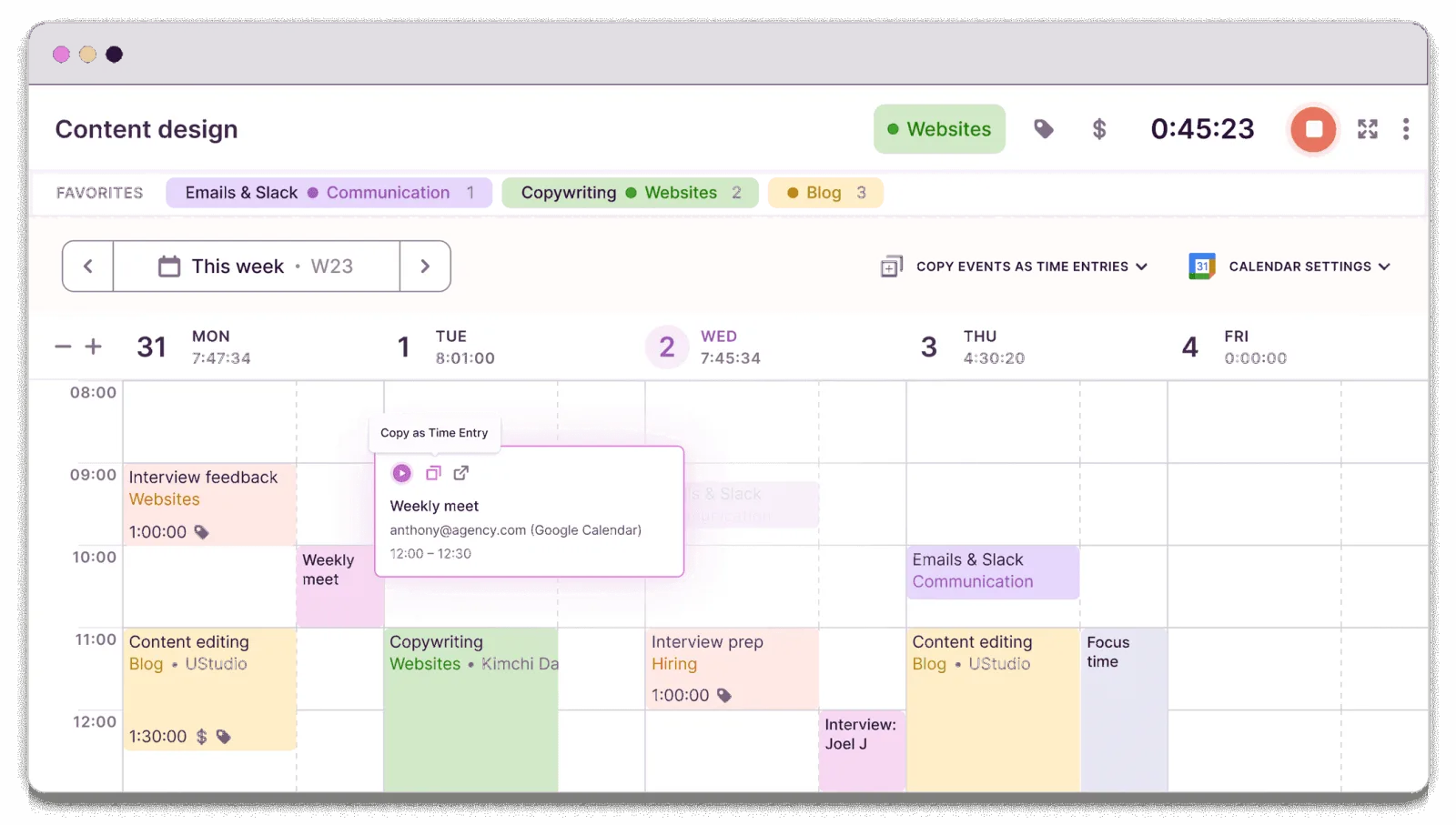
Toggl Track is one of the best-known timer apps. You start a timer, pick a project, and stop it when you are done. It runs on Mac, Windows, Linux, the web, iPhone, and Android, and it has a large list of integrations.
For projects, the free plan covers tasks and task estimates. Starter adds project estimates and billable rates. Premium adds fixed-fee projects, member rates, labor costs, and profitability reports. The desktop apps for Mac and Windows can also record the apps and websites you use for more than 10 seconds and show them on a timeline, which helps you fill gaps when you forget a timer.
Downsides: The best project features (profitability, fixed fees) are on Premium. Invoices are basic: you create a PDF from a report, the layout can’t be changed, and there is no paid status (Toggl’s invoice guide). Your data is stored in Toggl’s cloud.
Price: Free for up to 3 users. Starter is $9 per user per month billed yearly, or $12 monthly. Premium is $16 per user per month billed yearly, or $24 monthly. See Toggl’s pricing page.
Pick Toggl Track if you run a team that needs clean reports across many projects and works on more than just Macs. If you are leaving Toggl, see our Toggl alternatives.
2. Clockify: best free plan for a team
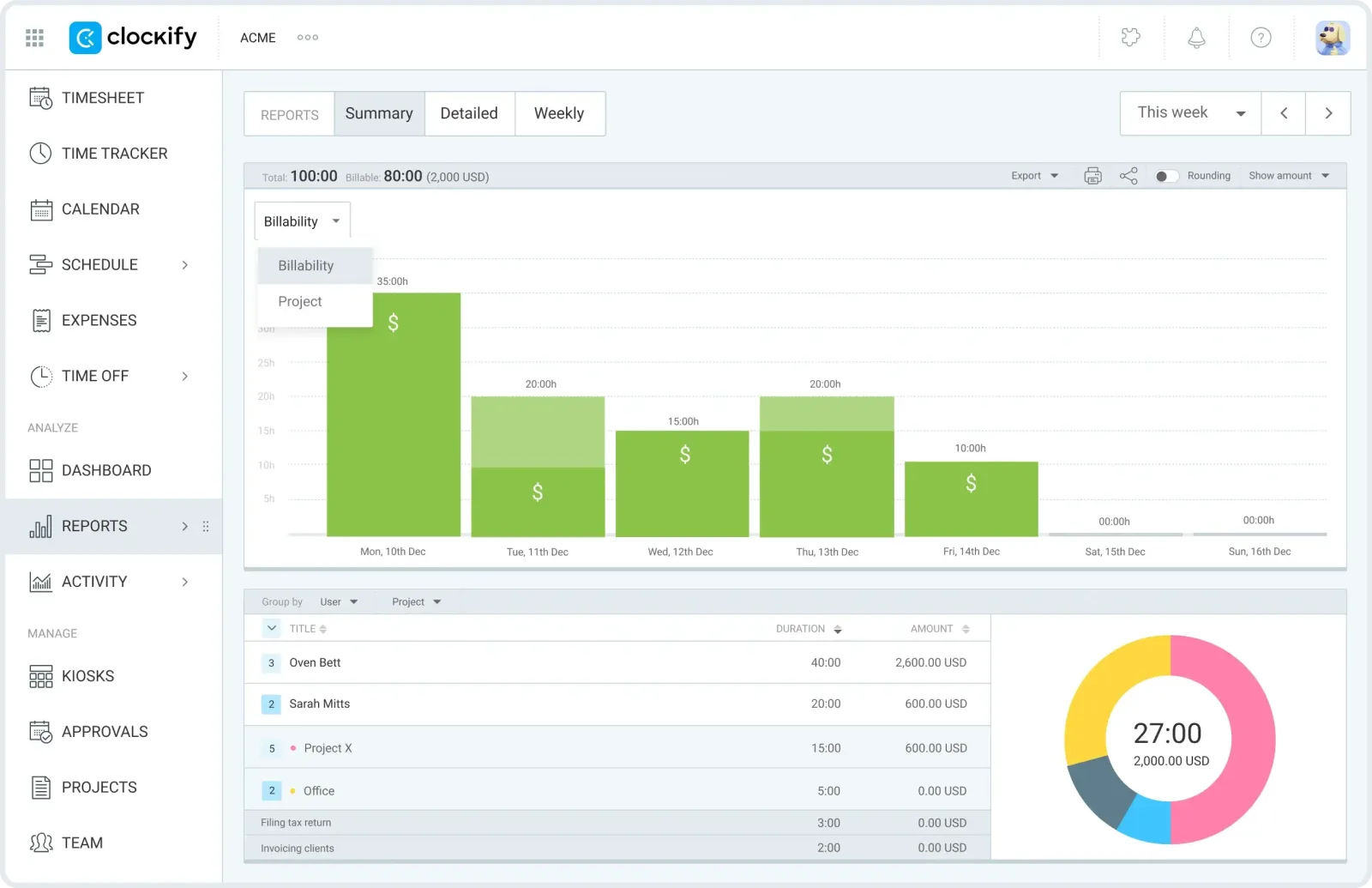
Clockify is the cheapest way to get a small team tracking time against projects. The free plan includes the timer, timesheets, and reports with no cap on tracked time. It runs on every major platform.
The project features are split across many paid tiers, so read the plan list carefully. Billable rates and time estimates start on Basic. Invoicing starts on Standard. Time or money budgets on projects, with progress tracking, need Pro.
Downsides: The free plan has no billable rates, invoices, or budgets, and its reports only cover a one-month range. Data is stored in Clockify’s cloud. Like Toggl, it is a timer, so forgotten timers mean missing hours.
Price: Free for up to 5 users. Paid plans per seat per month, billed yearly: Basic $3.99, Standard $5.49, Pro $7.99, Enterprise $11.99 (monthly billing costs more). See Clockify’s pricing page.
Pick Clockify if you need a whole team on one tool for little or no money. We also compare it in our Clockify alternatives guide.
3. Harvest: best for billing clients
Harvest is built around client work. Every plan, including the free one, supports time-and-materials and fixed-fee projects, project estimates, invoicing, and expense tracking. It has Mac and iPhone apps along with the web app.
That makes it a good fit for a freelancer or small studio whose main goal is to turn hours into invoices without a second app. On the Enterprise plan you also get profitability reports by client, project, task, or team, plus timesheet approvals.
Downsides: The free plan allows only 2 projects, which most freelancers outgrow fast. Profitability reports need Enterprise. It is a timer app, so you still have to start and stop it. Data lives in Harvest’s cloud.
Price: Free for 1 seat and 2 projects. Teams is $9 per seat per month billed yearly, or $11 monthly. Enterprise is $14 per seat per month billed yearly, or $17.50 monthly. See Harvest’s pricing page.
Pick Harvest if invoicing is the main reason you track time and you are happy to use timers.
4. Everhour: best if your projects live in a PM tool
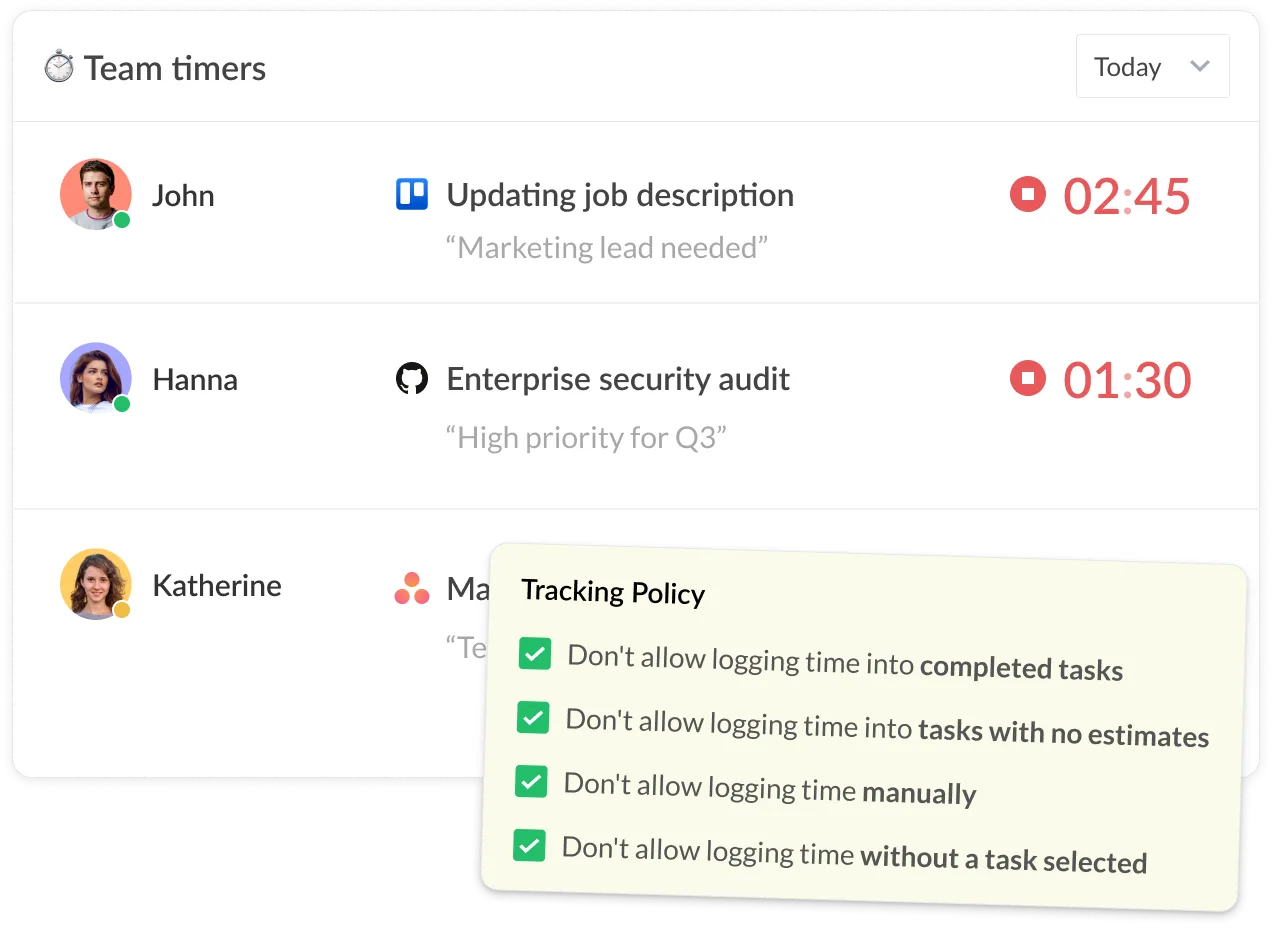
Everhour puts a timer inside the project management tool your team already uses. It lists Asana, ClickUp, GitHub, Linear, Basecamp, Jira, Trello, monday.com, and Notion among its integrations. Time is logged against the real tasks in those tools, so you do not keep two project lists in sync.
On the Team plan you get budgets, billing, and invoicing on top of the integrations.
Downsides: The free plan has no integrations, which is the main reason to pick Everhour. The Team plan has a 5-seat minimum, so a solo freelancer pays for 5 seats. Data is stored in Everhour’s cloud.
Price: Free for up to 5 seats with limited features. Team is $8.50 per seat per month billed yearly, with a 5-seat minimum. See Everhour’s pricing page.
Pick Everhour if your team plans work in Asana, Jira, or Trello and wants hours attached to the same tasks.
5. Kimai: best self-hosted option
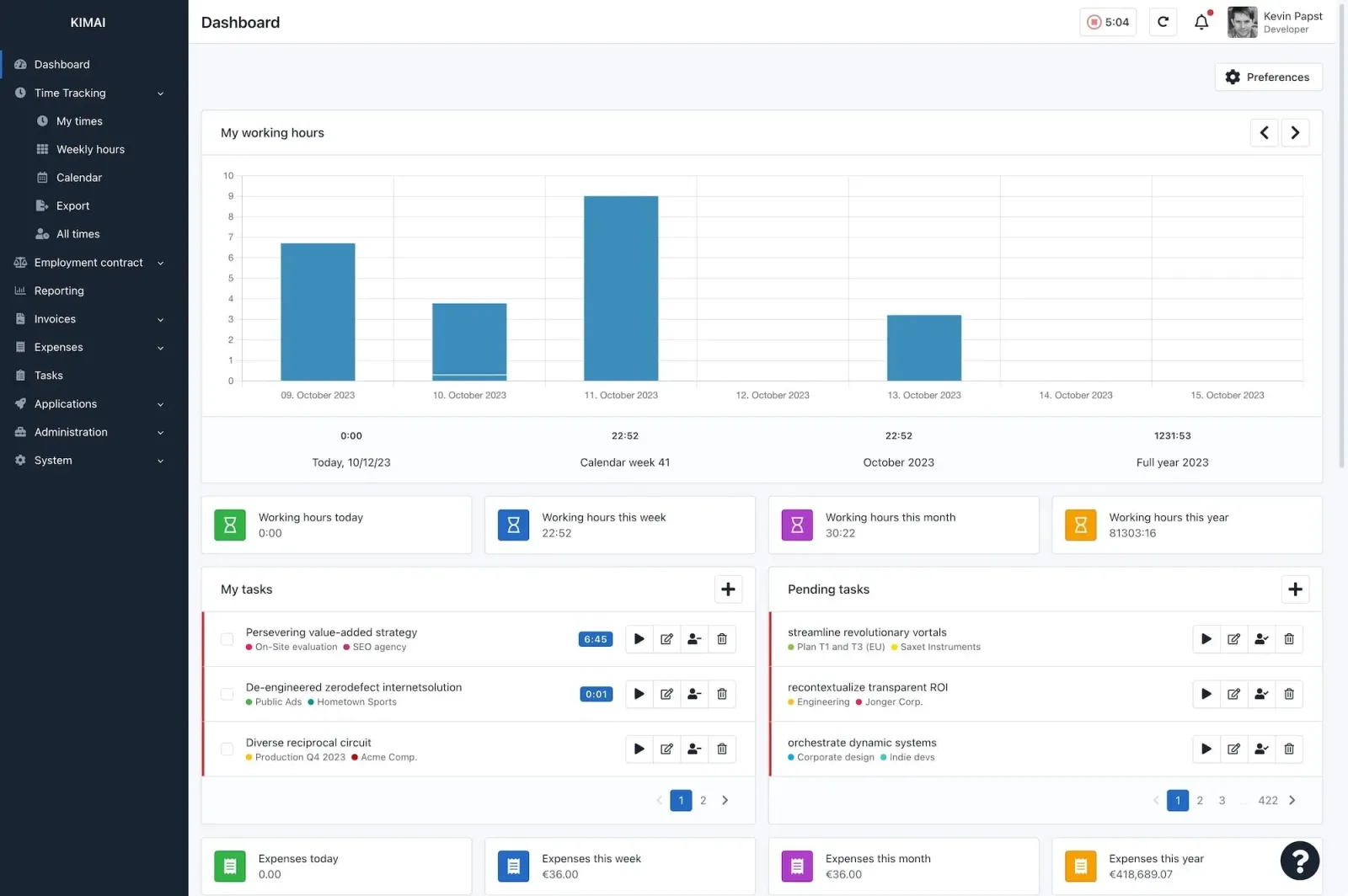
Kimai is open-source time tracking software (AGPL-3.0) that you can host on your own server for free, or rent as a cloud service. It is organized around customers, projects, and activities, which maps well to agency and consulting work.
Projects can have time or money budgets. A budget can cover the whole life of the project or reset every month, which suits retainers. Kimai can also create invoices from tracked time. See Kimai’s project documentation.
Downsides: Self-hosting means you handle setup, updates, and backups. The interface is more functional than polished. It is a timer and timesheet tool, not an automatic tracker.
Price: Free to self-host. The cloud version is listed from €2.99 per user per month on Standard and €3.99 on Professional, with a 30-day trial. See Kimai’s pricing page. For more self-hosted options, see our open source time tracking software guide.
Pick Kimai if you want your time data on a server you control and you are comfortable running it.
6. Timing: automatic tracking on a Mac, by subscription
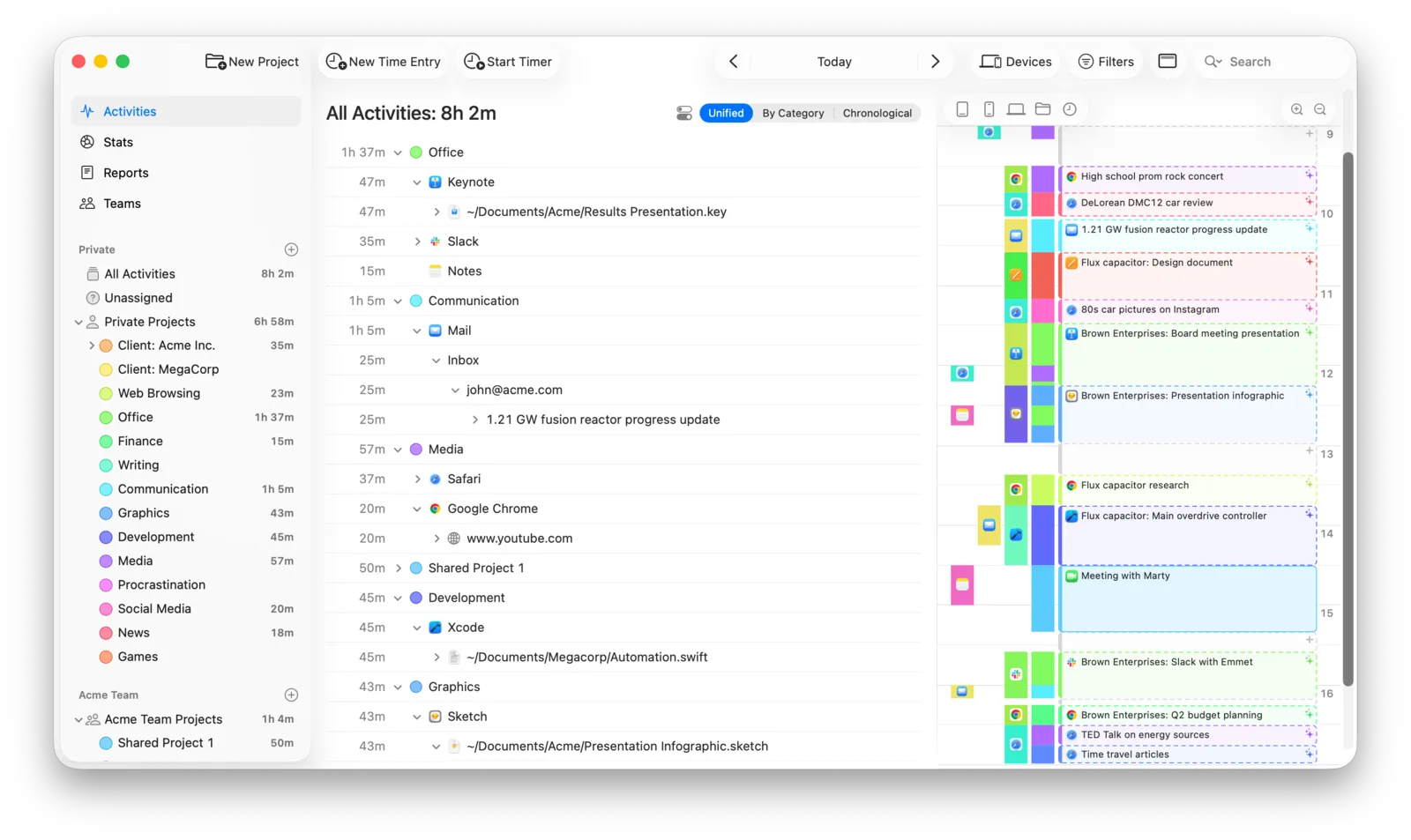
Timing is a Mac app that records the apps, documents, and websites you use, so you do not need to start timers. You drag that activity into projects, and if you hold Option while you drag, Timing creates a rule so similar activity goes to that project automatically from then on.
For billing, Timing can export timesheets as PDF, XLSX, CSV, or HTML, and its GrandTotal plug-in imports tracked hours into invoices. Team features and two-way sync with tools such as ClickUp and Linear are on the higher Connect plan.
Downsides: Mac only, subscription only. Timing’s own pages do not list project budgets, so check this if fixed-fee work is important to you. Higher tiers cost noticeably more than the base plan.
Price: Professional is $10 per month, or about $108 per year billed yearly. Expert and Connect cost more and add more Macs and features. 30-day free trial. See Timing’s pricing page.
Pick Timing if you want automatic tracking on a Mac and do not mind paying every year.
7. Chronoid: automatic tracking on a Mac, pay once
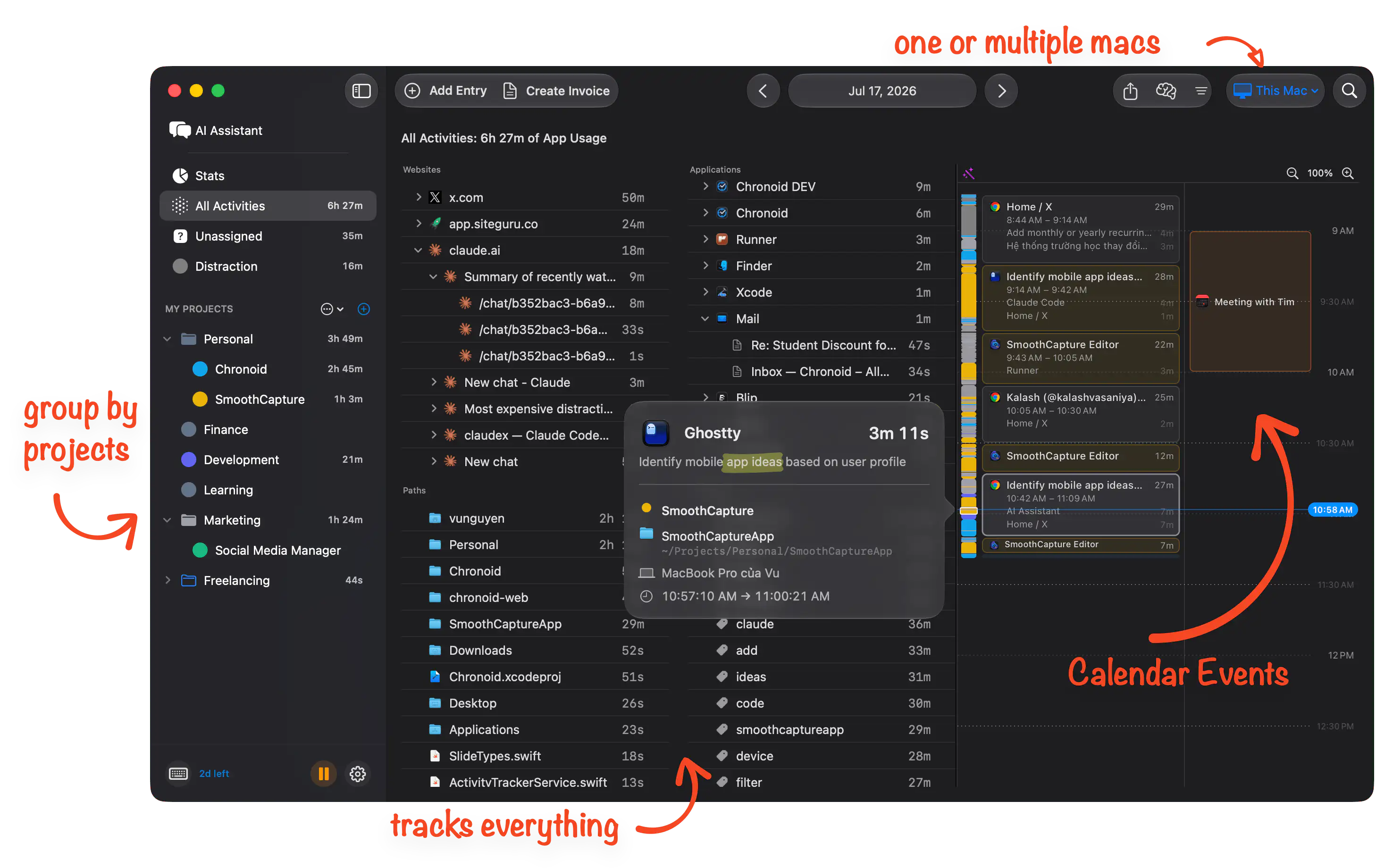
Chronoid is a Mac app we make, so take this section with that in mind. It records the apps, websites, and documents you work on in the background, then sorts that time into projects for you.
How projects work in Chronoid:
- Projects and subprojects. One project per client, with a subproject for each job, nested as deep as you like. See project features.
- Rules that assign time automatically. Match on app, website, URL path, file path, window title, or keyword, and combine conditions with AND, OR, and NOR. A rule like “file path contains
/Clients/Acme” or “website isfigma.comand title containsAcme” sends that work to the right project without a timer. See project auto-assignment. - Unassigned time you can fix later. Anything that does not match a rule waits in Unassigned. Right-click it to assign it, or Option-drag it to a project to create a rule at the same time.
- Meetings and offline work. Chronoid detects calls in Zoom, Teams, FaceTime, and Google Meet and asks which project to log them to when the call ends. You can add manual entries for phone calls or work away from the Mac.
- Project hour targets. Set daily, weekly, or monthly hour targets per project and get a notification when you reach them. This works well for retainers with a fixed number of hours.
- Billable rates and invoices. Mark projects as billable, set hourly rates, see billable and non-billable time per project, and create PDF invoices from tracked hours (Personal plan and up).
Your activity data stays on your Mac. If you use more than one Mac, they sync through your own iCloud account, not a Chronoid server.
Downsides: Mac only, one person only. There are no team dashboards, no Windows or web app, and no free forever plan. It has hour targets, but not money budgets like Clockify Pro or Kimai. If you need to see a teammate’s hours, pick a team tool above.
Price: 7-day free trial. Basic is $59 once for one Mac and includes projects, rules, and hour targets. Personal is $99 once for two Macs and adds billable rates, invoices, and iCloud sync. Basic and Personal include one year of updates, and you keep your version after that. Lifetime is $149 once, or subscribe for $15 per month. See pricing.
Pick Chronoid if you work alone on a Mac, often forget timers, and want project hours to fill in on their own without sending your activity to someone else’s cloud.
How to choose
Start with two questions.
Is it just you, or a team? If other people need to log time or see reports, pick a team tool: Clockify if cost matters most, Toggl Track for reports, Harvest for invoicing, Everhour if your work lives in a PM tool, or Kimai if you want to host it yourself. If it is just you, team features are cost without benefit. See also time tracking for agencies and time tracking for consultants.
Do you remember to start timers? Be honest here. If you switch between clients many times a day, a timer will miss hours, and those are hours you do not bill. An automatic tracker such as Timing or Chronoid records everything and lets you sort it later. Our guide to automatic time tracking software covers this in more detail.
Then check the details that matter for how you charge:
- Hourly billing: billable rates per project, a billable vs non-billable split, and invoices or a clean export. Our billable hours calculator helps you check the math.
- Fixed-fee work: budgets in money, or at least hours, with a warning before you go over.
- Retainers: a monthly budget or monthly hour target that resets each month.
How to set up projects so the reports are useful
The tool matters less than how you set it up. A few habits help in any of them:
- One project per client, subprojects per job. “Acme” with “Website redesign” and “Monthly support” under it is easier to report on than ten loose projects.
- Set rates before you track. Adding rates later means going back through old entries.
- Keep a non-billable project. Admin, sales calls, and learning are real work. Tracking them shows you how much of your week is actually billable.
- Review once a day or once a week. Five minutes to fix missing or unassigned time is much easier than rebuilding a month from memory. Our guide on how to track billable hours goes through a simple routine.
Common questions
What is the difference between project time tracking and timesheets?
A timesheet is a record of hours, usually per person per day or week, often submitted for approval or payroll. Project time tracking focuses on how those hours split across projects and clients, with rates, budgets, and reports per project. Most team tools such as Clockify and Harvest do both.
Is there free project time tracking software?
Yes. Clockify is free for up to 5 users, Toggl Track for up to 3, Harvest for 1 seat and 2 projects, and Everhour for up to 5 seats with limited features. Kimai is free if you host it yourself. Free plans usually leave out billable rates, budgets, or invoicing, so check which of those you need. For more options, see our list of free time tracking software.
Can project time be tracked automatically?
Yes. Automatic trackers record which apps, documents, and websites you use, and rules assign that activity to projects. Timing and Chronoid both work this way on a Mac. Toggl Track’s desktop apps can also record activity on a timeline and remind you to track time when they see keywords you link to a project, but the timer is still the main way time gets in.