Activate & Manage Your License

After purchasing Chronoid, you'll receive a license key via email. Follow the steps below to activate it.

Activate Your License

  1. 1

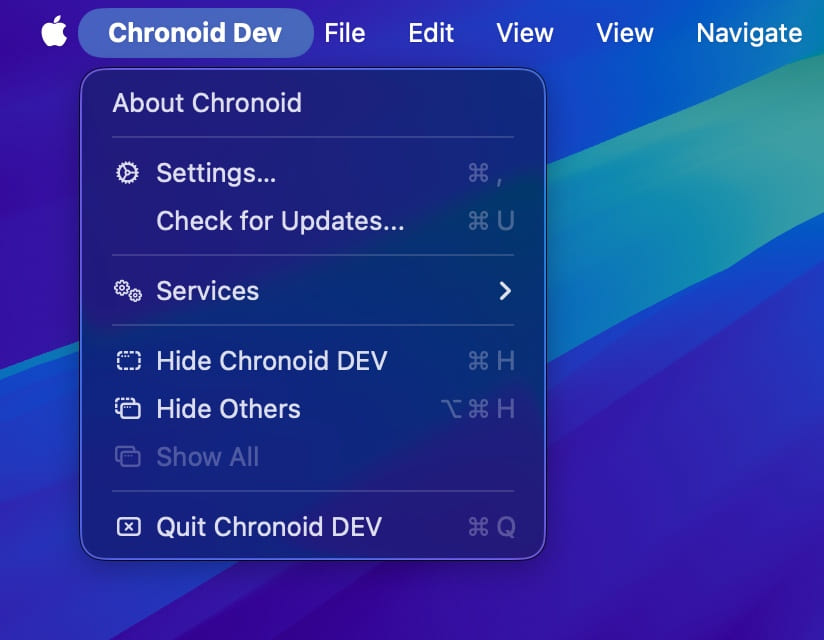
    Open Settings in Chronoid. There are several ways to do this:

    • Press ⌘ + ,
    • Click the Settings button inside the app
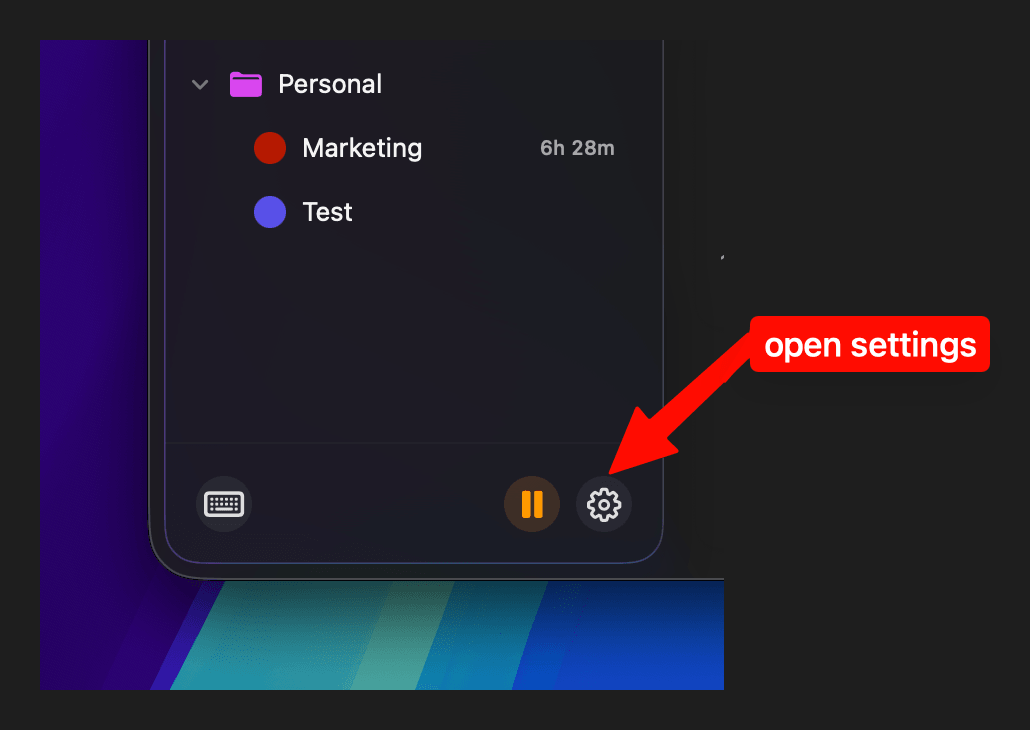
      Open Settings from the in-app settings button
    • Click the Chronoid icon in the menu bar → Settings
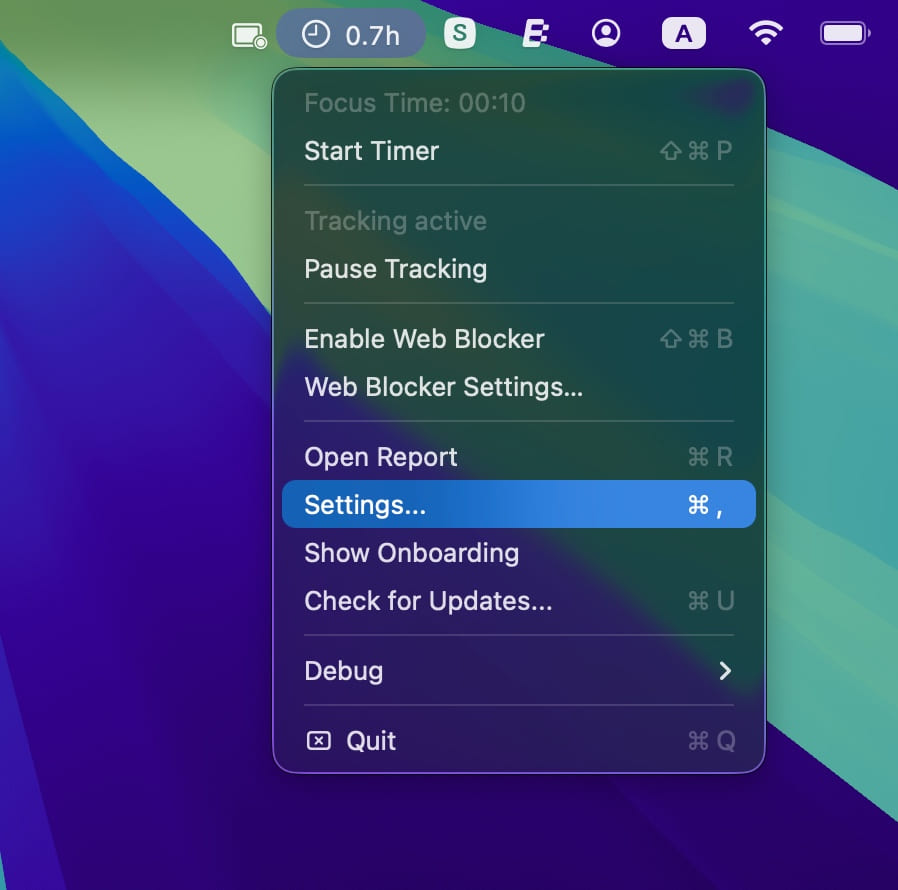
      Open Settings from the menu bar status iconOpen Settings from the Chronoid app menu
  2. 2

    Navigate to the License tab, paste your license key, and click Activate.
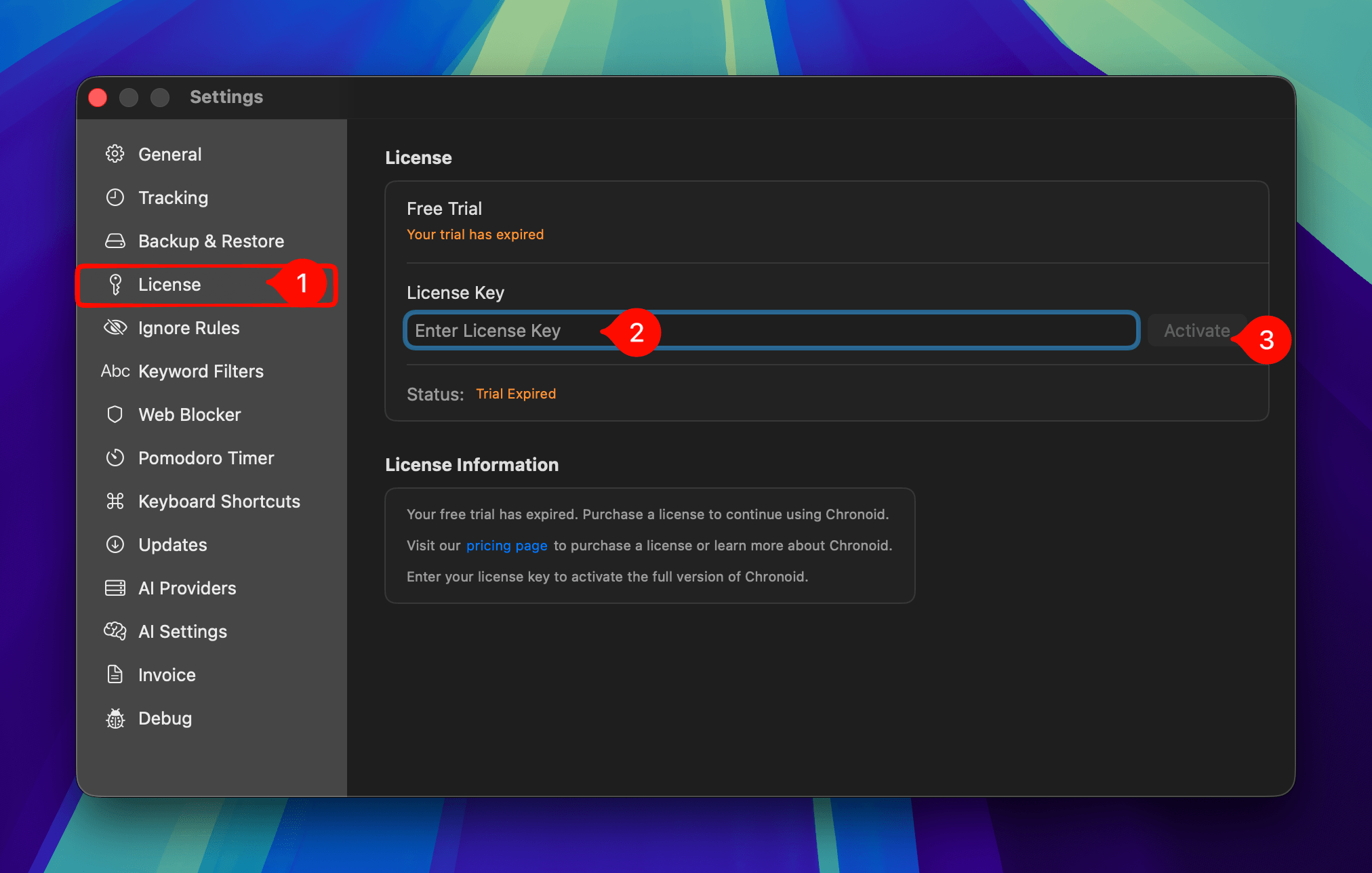
    License settings page showing the License tab, license key input field, and Activate button

Manage Your License

To view your purchase history, download invoices, or manage your license, open the Chronoid customer portal.

Need help?

If you're having trouble activating your license or can't find your license key, contact us at support@chronoid.app

Get ready to be productive!

Your download should start automatically. If it doesn't, download it manually.

  1. Chronoid-latest.dmg macOS 14 or later

    Step 1

    Open

    Open Chronoid-latest.dmg from your Downloads folder.

  2. Step 2

    Install

    Drag Chronoid into your Applications folder.

  3. Step 3

    Launch

    Open Chronoid and start your free 7‑day trial, with every feature included.