How to Use the Web Blocker
Block distracting sites like social media, video, and news during your work hours with Chronoid's web blocker, using custom schedules and on-demand breaks.
The Web Blocker helps you stay focused by automatically blocking distracting websites like social media, YouTube, and news sites during your work hours. You can customize when it works, take breaks when needed, and even turn it on outside your normal schedule.
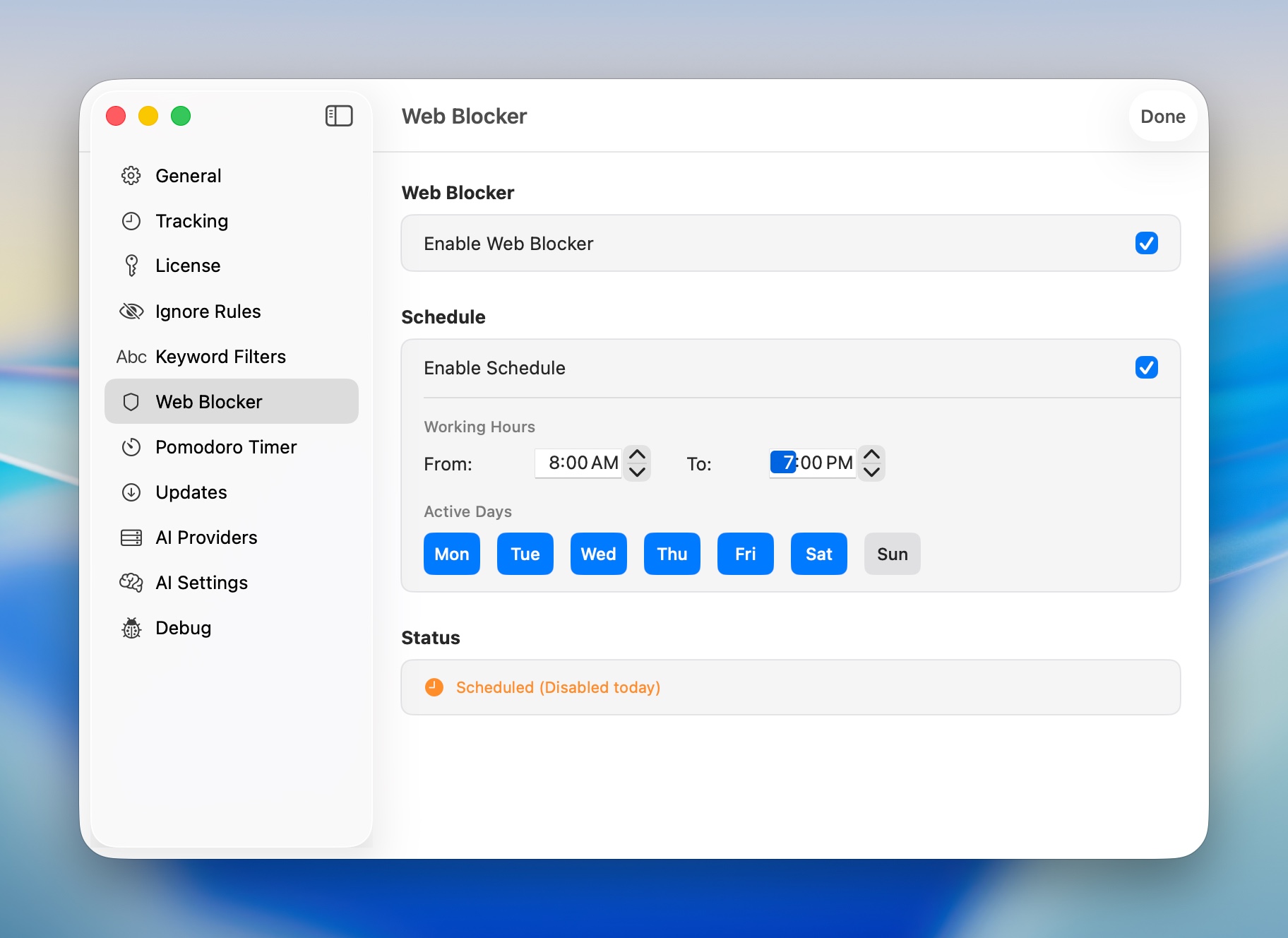
What the Web Blocker Does
When you turn on the Web Blocker, it prevents you from accessing websites that might distract you from work. This includes:
- Social media (Facebook, Twitter, Instagram, TikTok, etc.)
- Video sites (YouTube, Netflix, Twitch, etc.)
- Gaming websites
- Online shopping sites
- News and entertainment sites
Getting Started
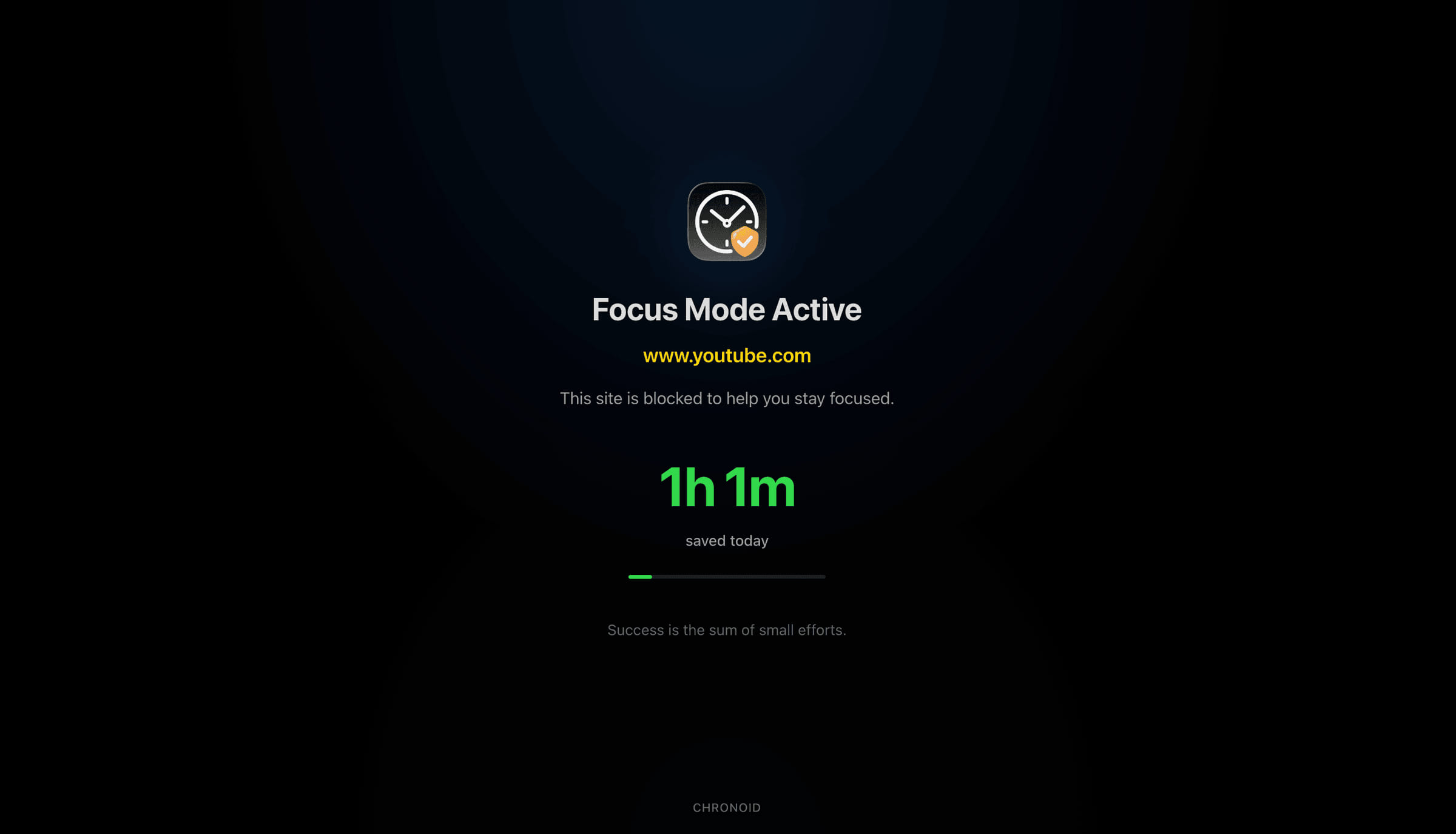
Step 1: Turn On the Web Blocker
- Open Chronoid from your menu bar
- Click on Settings (gear icon)
- Find the Web Blocker section
- Toggle the switch to ON
That’s it! The Web Blocker is now active and will block distracting websites.
Step 2: Choose When It Works
You have two options:
Option A: Block Sites All the Time
Leave the “Enable Schedule” switch OFF. This means distracting sites are always blocked, 24/7.
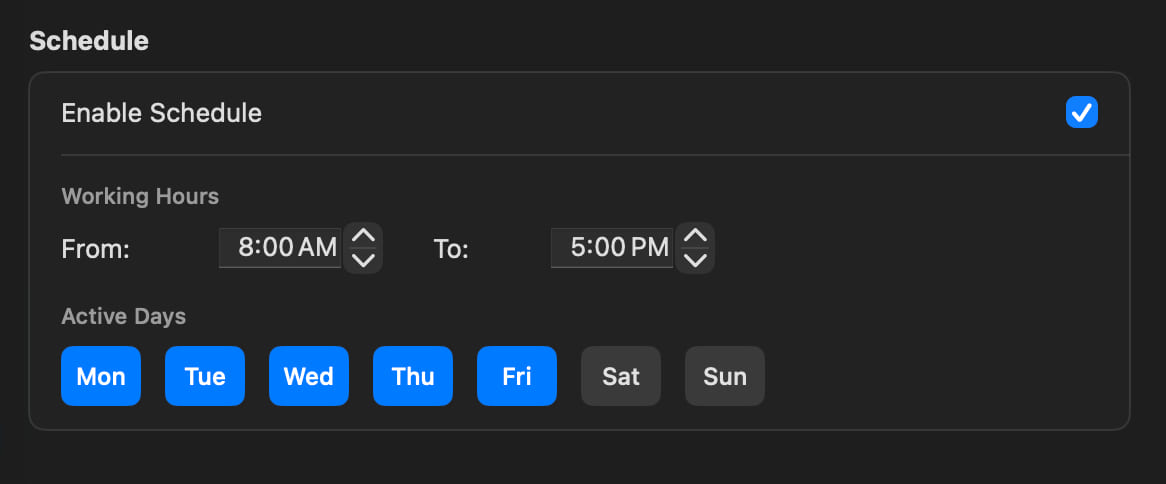
Option B: Block Sites During Work Hours Only
- Turn ON the “Enable Schedule” switch
- Set your work hours (for example, 9:00 AM to 5:00 PM)
- Choose which days you work (usually Monday through Friday)
Step 3: Let Smart Suggestions Help (Optional)
With Smart Suggestions on, Chronoid offers to block distracting sites as you visit them, based on your tracked time. The prompt shows how long you’ve spent on the site today, appears immediately for heavy usage, and goes away on its own when you move on to something else. Sites you decline are remembered in a “Never ask again” list, and Auto-hide prompt dismisses the suggestion automatically if you don’t respond.
Common Situations
”I need to work on Saturday”
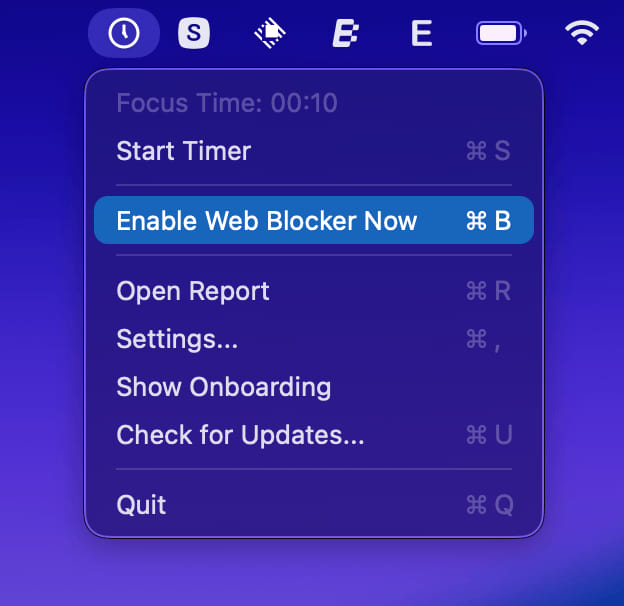
If you normally don’t work weekends but need to focus on Saturday:
- Click on the Chronoid icon in your menu bar
- Select Enable Web Blocker Now
The Web Blocker will immediately start blocking distracting sites, even though it’s outside your normal schedule. When you’re done, just turn back OFF.
“I need a quick break”
Sometimes you need to check something on a blocked site. You can pause blocking from the Pause row at the top of the Web Blocker settings, or from the menu bar (Temporarily Disable Web Blocker):
- 1 minute - Just need to check something quickly
- 5 minutes - A focused detour
- 15 minutes - Coffee break
- 1 hour - Lunch break
- Today - Done working for today; blocking resumes with your next scheduled session
- Custom… - Pick your own length, from 1 minute up to 24 hours. Chronoid remembers the last custom length you used.
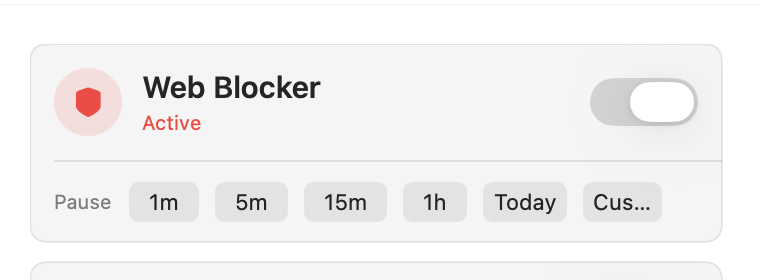
The Web Blocker turns back on automatically when the time is up — the settings pane shows “Paused until…” with a Resume Blocking button if you want to end the break early. The same pause options are available as actions in the Shortcuts app (see Integrations).
”It’s not blocking anything”
If websites aren’t being blocked, check these things:
- Is the Web Blocker enabled? Check the main toggle switch
- Are you within work hours? If you have a schedule set, make sure it’s currently active
- Is it temporarily disabled? Look for a message saying “Temporarily disabled until…”
- Did you give Chronoid permission? The first time you use it, macOS will ask for permission
Different Ways to Use the Web Blocker
For Regular 9-5 Workers
- Enable Schedule: ON
- Working Hours: 9:00 AM to 5:00 PM
- Active Days: Monday to Friday
- Manual Override: OFF (turn on when needed)
This blocks distracting sites during your work hours on weekdays only.
For Students
- Enable Schedule: ON
- Working Hours: 8:00 AM to 12:00 PM (study time)
- Active Days: Every day
- Manual Override: ON for evening study sessions
This creates a morning study routine but lets you activate blocking anytime for late-night studying.
For Remote Workers
- Enable Schedule: OFF
- Just turn the Web Blocker on when you start working
- Turn it off when you’re done
This gives you complete control - perfect if your schedule changes daily.
For Night Shift Workers
- Enable Schedule: ON
- Working Hours: 10:00 PM to 6:00 AM
- Active Days: Select your work nights
The Web Blocker handles overnight schedules perfectly - it knows when you’re working past midnight.
Tips for Success
Start Small
If you’ve never used a web blocker before, start with just a few hours a day. You can increase it as you get comfortable.
Be Realistic
Set a schedule that matches when you actually work, not when you think you should work. You can always use Manual Override for extra sessions.
Use Breaks Wisely
The temporary disable feature is there for a reason. Taking real breaks helps you stay focused when you return to work.
Review Weekly
Every week, check if your schedule still makes sense. Are you using Manual Override too often? Maybe adjust your schedule.
Privacy & Security
Everything happens on your Mac - we never see which websites you visit or when you’re working. The Web Blocker works by:
- Checking sites against a local list of distracting websites
- Blocking them at the system level (works with all browsers)
- Keeping all your data private on your device
Need Help?
If something isn’t working right:
- Restart Chronoid - Sometimes this fixes permission issues
- Check System Preferences - Make sure Chronoid has the permissions it needs
- Contact Support - Email us at support@chronoid.app
Remember: The Web Blocker is a tool to help you focus, not a punishment. Use it flexibly to create the work environment that helps you be most productive!